Development AI 1 min read
Making Firefox's AI Chatbot local-only with Lemonade
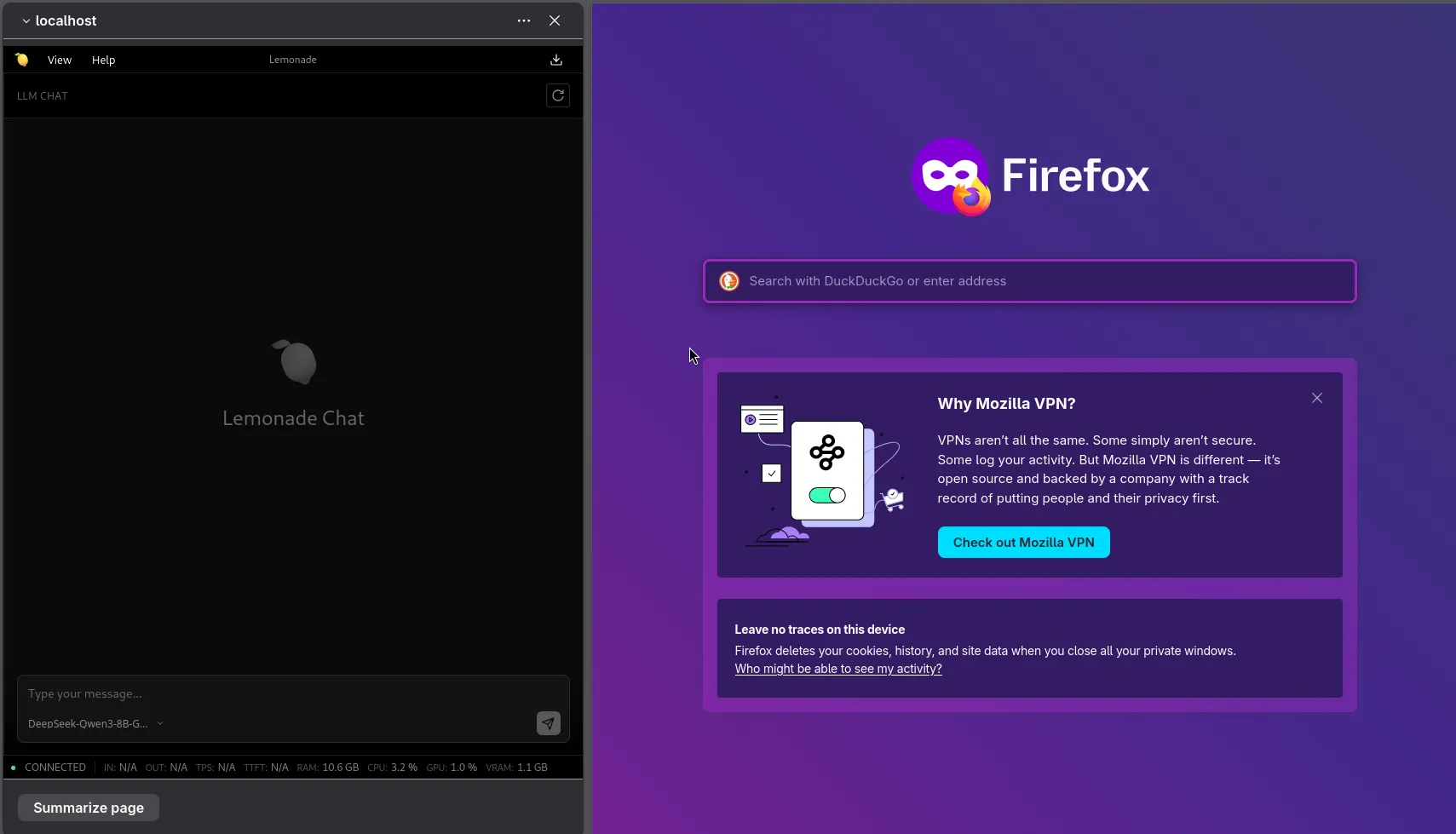
Firefox's AI chatbot sidebar can talk to a local Lemonade server. One CLI command and one about:config flip and your prompts never leave your machine.
Firefox ships with a built-in AI chatbot sidebar that supports local inference providers. Pair it with Lemonade and every prompt stays on your machine, with no cloud round-trips and no per-token bills. Here's the setup.
Change Lemonade's to port 8080, change one about:config flag, and Firefox's AI chatbot uses your local model.
The Setup
Point Lemonade at Port 8080
Firefox's local inference expects the local server to be on port 8080 while Lemonade defaults to 13305. Change it to use Firefox's port instead:
lemonade config set port=8080That's it. The change takes effect immediately, no restart needed. If you're curious what else you can tweak, lemonade config lists every option.
Unhide the Localhost Provider in Firefox
Firefox keeps the localhost inference option hidden by default. To surface it, open about:config, accept the warning, and set browser.ml.chat.hideLocalhost to false.
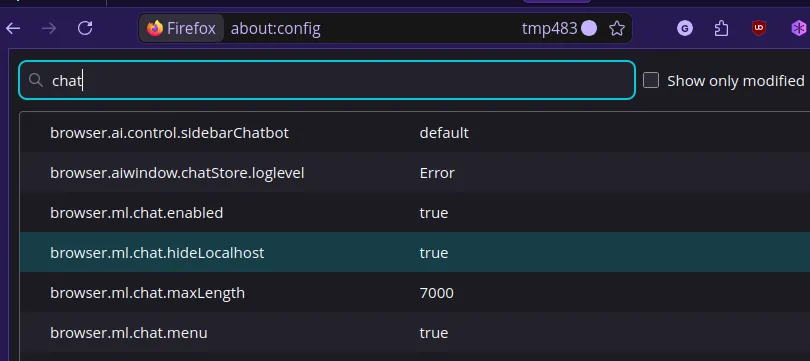
Now head to the AI Chatbot sidebar settings. localhost should appear in the provider dropdown. Select it and Firefox will route requests to your local Lemonade server on port 8080.
What's also cool is the native Firefox "AI" tooltip will default to the last used provider and is actually customizable, read about how to change the options here.
Clean Up the Sidebar
Lemonade's web UI wasn't designed for a narrow panel, so hiding the model selector, marketplace, and logs pane makes for a much cleaner experience.
Why Go Local?
Once you have the hardware, local inference means zero latency to a remote API, zero cost per token, and full privacy by default. Firefox's sidebar is a lightweight front-end that just works alongside whatever you're browsing, no extra extensions or apps needed.